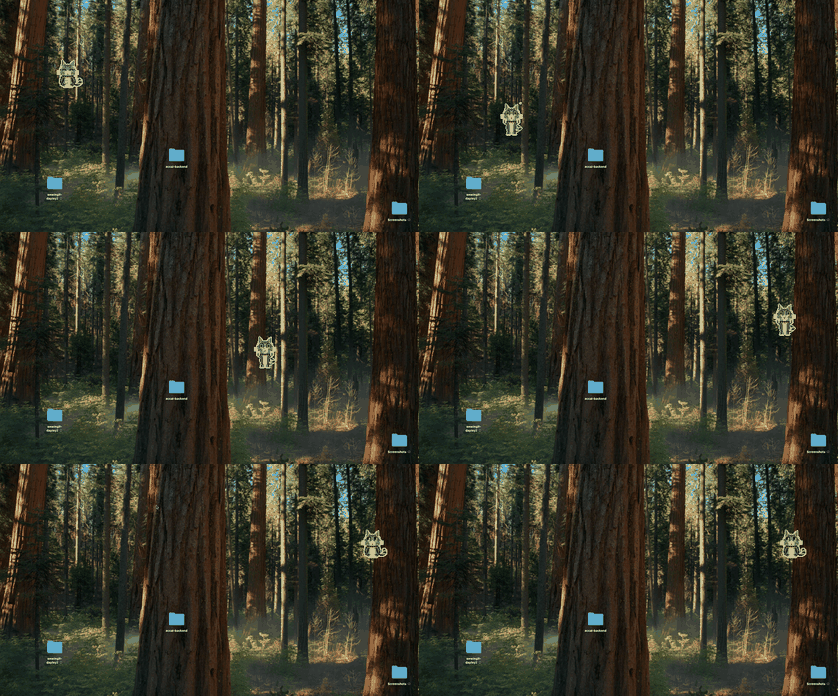
Pet him
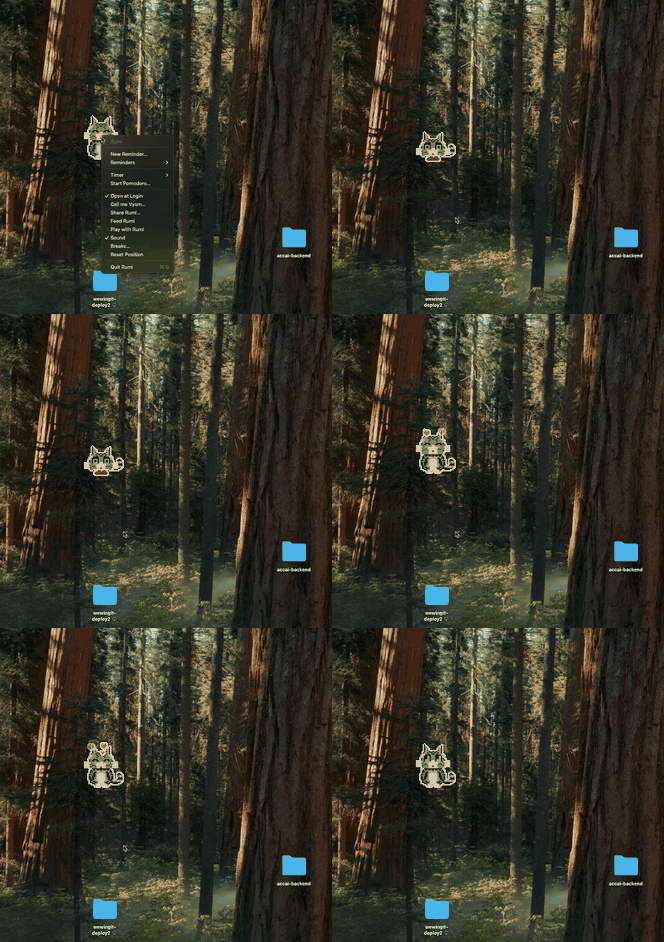
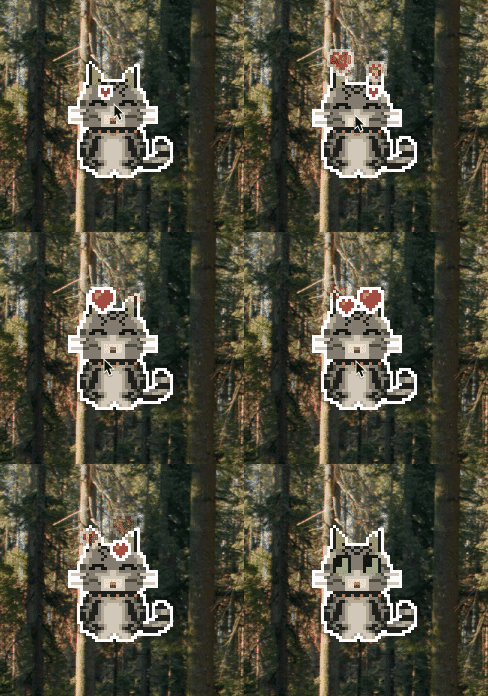
Stroke him with the cursor and he squints. Keep going and he purrs, hearts and all.
How: Move the mouse back and forth across him.
An adorable pixel cat who sits in the corner of your screen, watches your cursor and types with you. He keeps your reminders and nudges you to stretch and hydrate. You can also feed and play with him. He loves it when you pet him!
2 MB · macOS 11 or later
Apple Silicon and Intel
Rumi is free. If you’d like, chip in any amount and everything we receive goes to a cat charity.
 Chip in for cats in need
Most of the time, Rumi simply sits in the corner. When you want him, everything starts with the mouse.
Stroke him with the cursor and he squints. Keep going and he purrs, hearts and all.
How: Move the mouse back and forth across him.
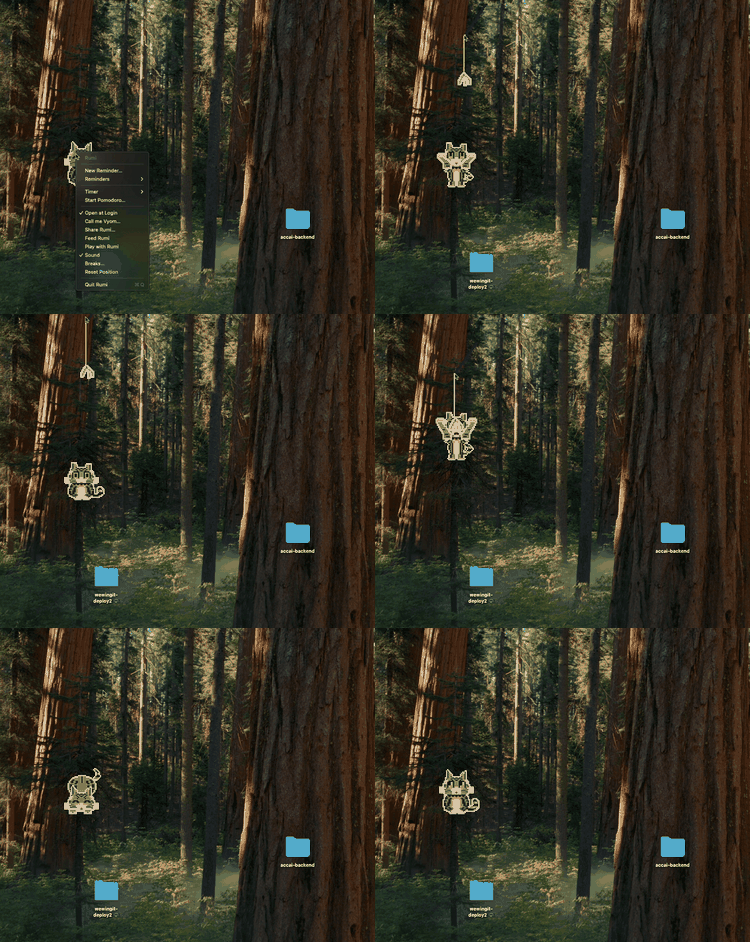
Drag him anywhere on the screen. He dangles.
How: Click and drag.
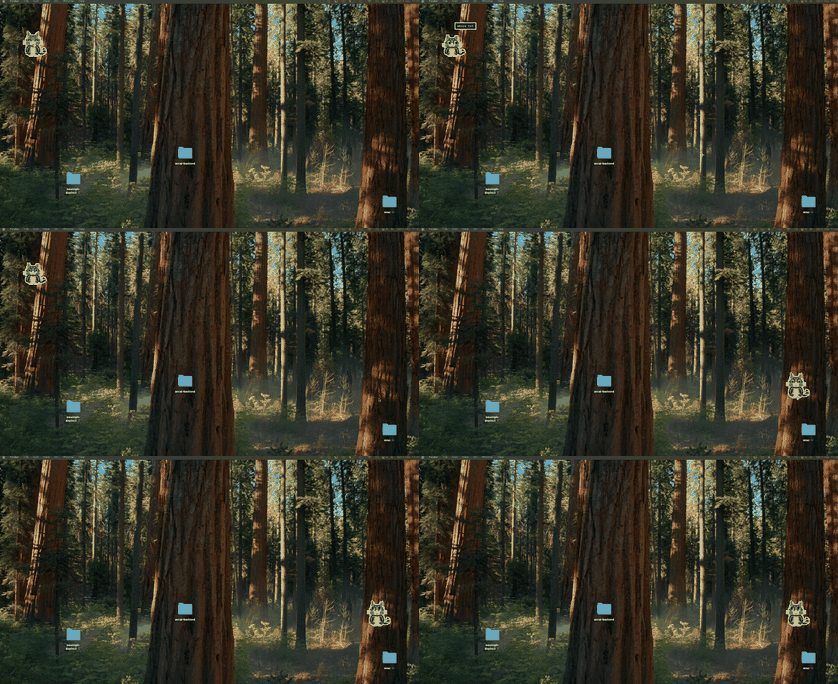
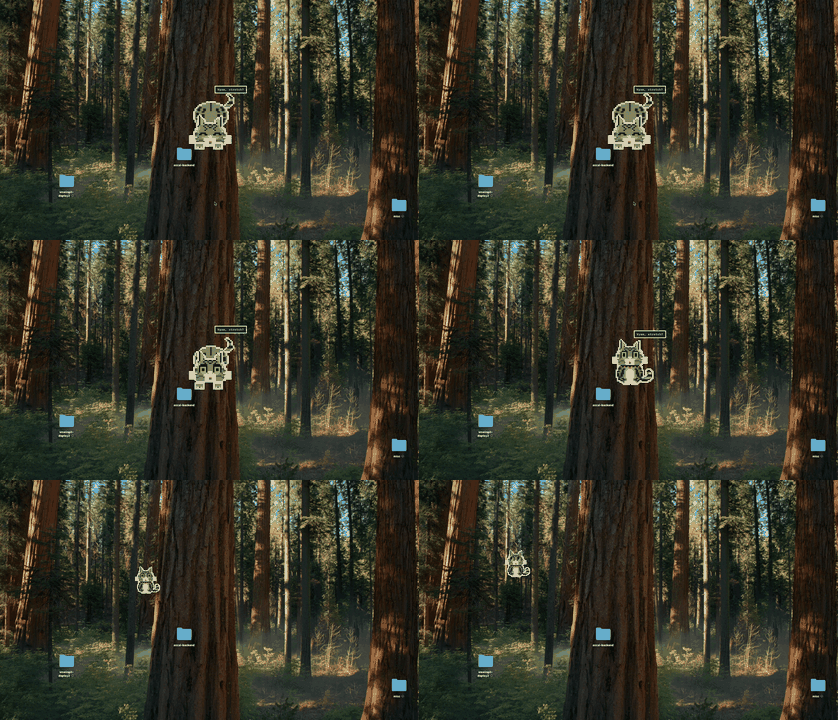
Push him past a screen edge and he hangs on, peeking. He stays there until you pull him back.
How: Drag him past the left, right, top or bottom edge.
Double-click him, then click anywhere. He darts there.
How: Double-click, then click.
A fishing-rod wand follows your cursor — his real toy. Dangle the feathers over him and he leaps. He gets bored after a while, like a cat.
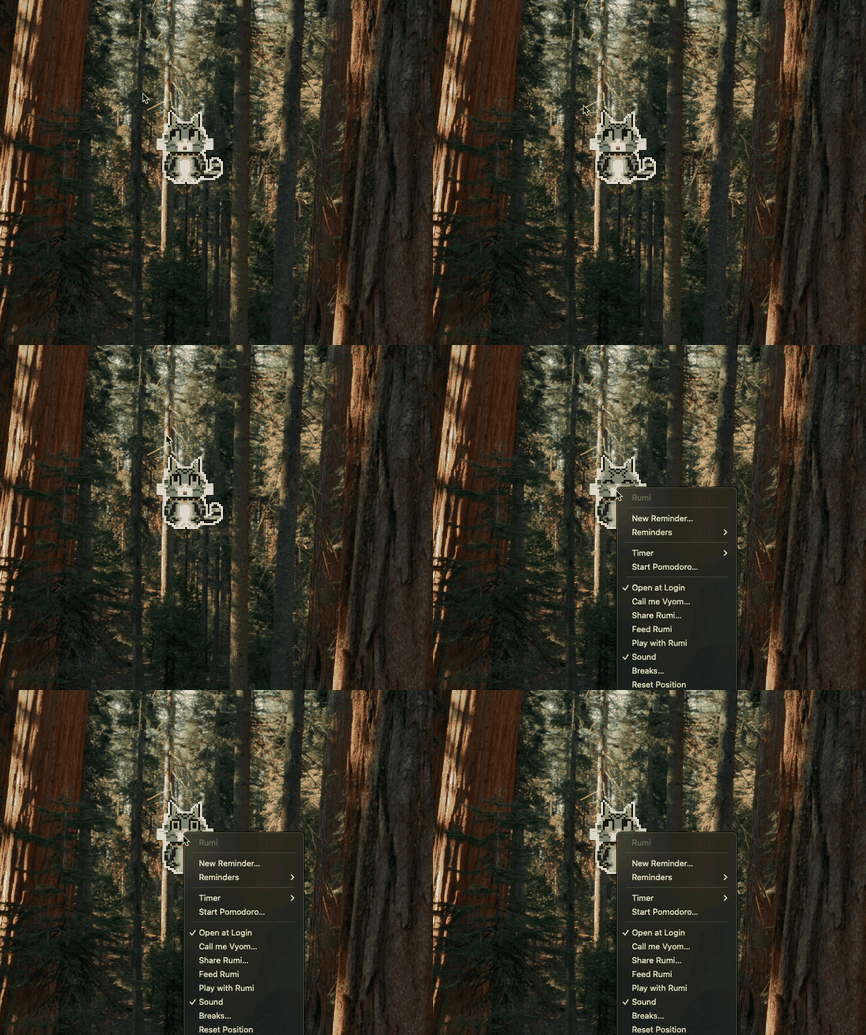
How: Right-click him → Play with Rumi. Click him to stop.
His dinner.
How: Right-click him → Feed Rumi.
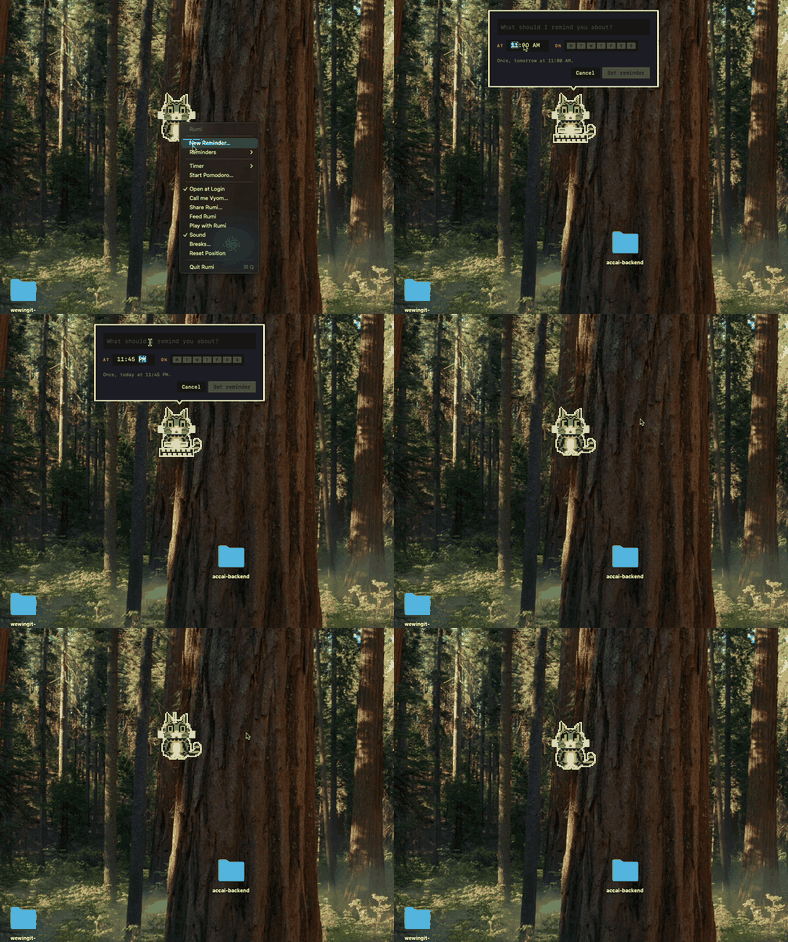
A time and a message. He hops, meows once, and holds the note up until you click it.
How: Right-click him → New Reminder…
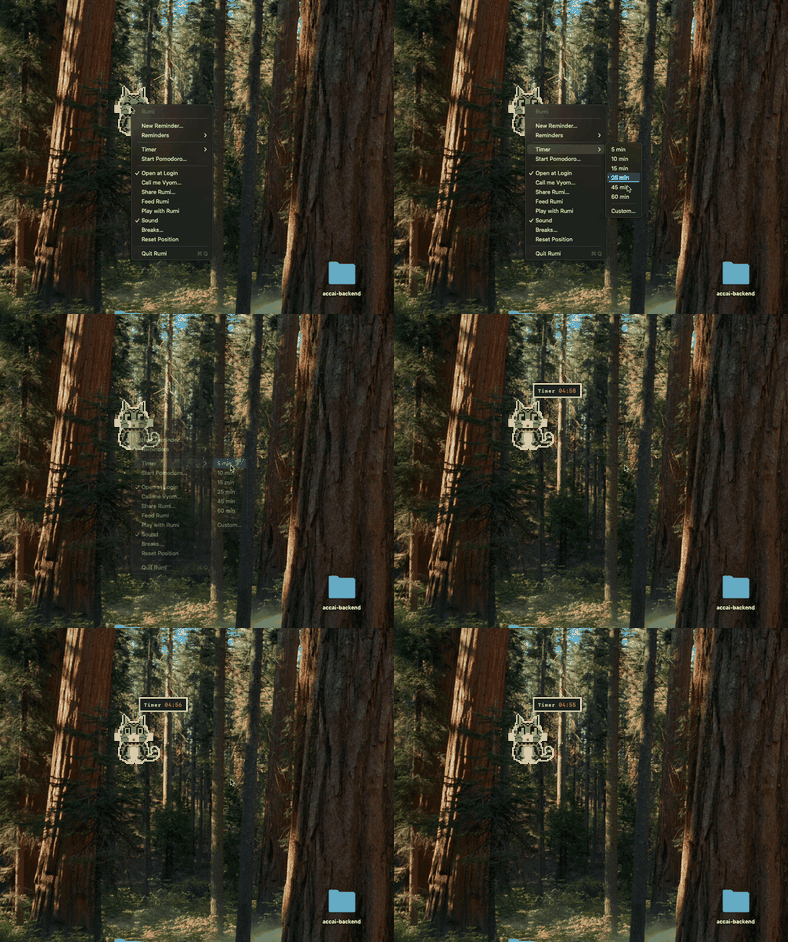
A little tag counts down beside him; click it to pause. In a pomodoro he naps through your breaks and wakes up with a stretch.
How: Right-click him → Timer or Start Pomodoro…
Every fifty minutes or so he comes to the middle of the screen, stretches, and goes back. Every hour, a drink of water.
How: On by default. Right-click → Breaks… to change the timing or switch them off.
Start a film full-screen and he slides to the edge and peeks. He comes back when it ends.
How: Nothing to do.
Between nine and ten he asks for dinner — a hop, a meow, a bowl over his head — until you feed him.
How: Right-click → Feed Rumi.
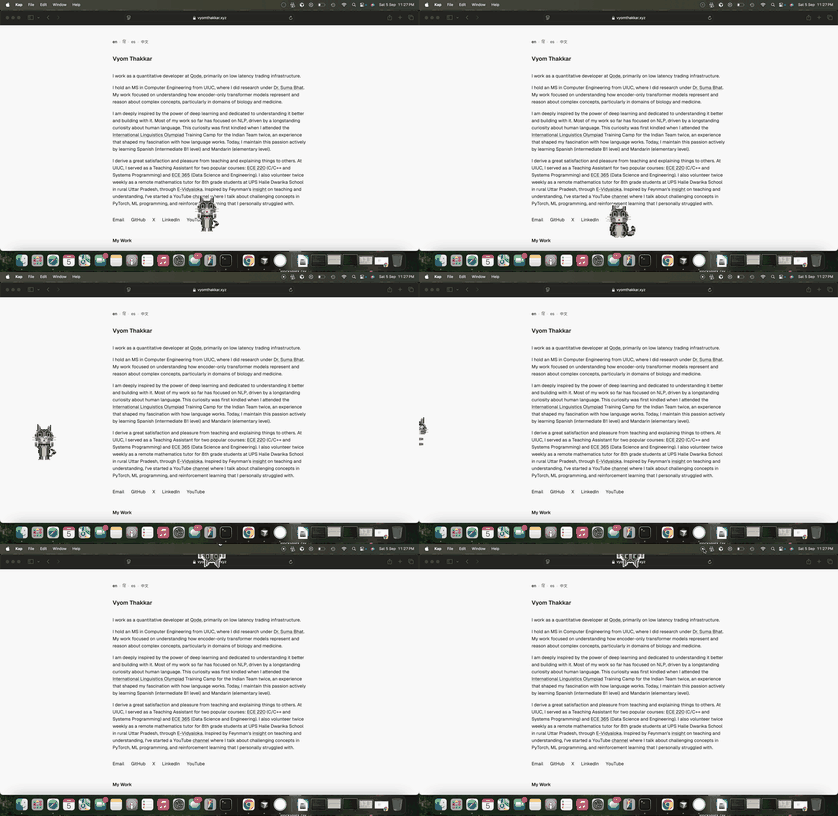
Start typing and a little keyboard appears in front of him. Each key you press puts one of his paws down — left, right, left — so his rhythm is yours. He stops when you do.
How: Nothing to do.
His eyes follow the cursor. Left alone he blinks, flicks his tail, and ignores you.
How: Nothing to do.
Meows with a reason. Only for a reminder, a timer, dinner or a break — never at random. Right-click → Sound to switch it off.
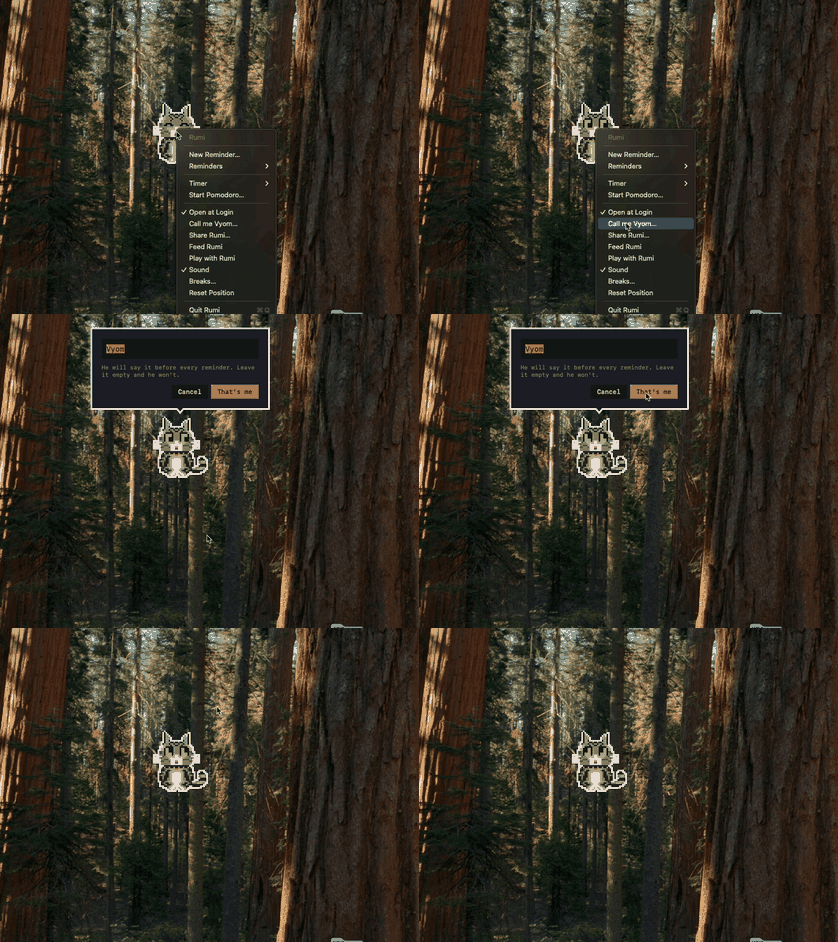
Tell him and he’ll use it.
How: Right-click him → Tell him your name…
One download, one drag, and he’s there.
One file, about two megabytes.
The window shows you where.
The first time, macOS asks whether to open an app downloaded from the internet — click Open. That’s the only time it asks.
Bottom-right of your screen, and back at every login. Right-click him for everything he does.
macOS 11 Big Sur or later. Works on Apple Silicon and Intel Macs. Rumi asks for no permissions and sends nothing anywhere — there is no account, no sign-in, nothing to track. He can look for new versions once a day if you let him. Nothing about you or your Mac is sent.
He can tell that you’re typing, never what you type: he reads how long ago a key was pressed and nothing else.
Download Rumi for Mac Send this page to your MacRumi is a real cat. He is the most beautiful cat I have ever seen and this pixel one is drawn from him.
He is hungry at nine. He has the cutest meows. He ignores most toys but leaps for the wand, and he is quicker than anyone expects. I am always surprised by how fast and effortlessly he moves.
Rumi is adorable, Rumi is cute and he really cares about humans!
This was made as a gift for Chandana, Rumi's pet mom, on his second birthday.